
Open the browser on your SFR box, and instead of Google, the SFR portal appears. The address bar redirects to a proprietary search engine, favorites are not synchronized, and navigating with the remote makes every search tedious. This scenario affects all subscribers who use the integrated browser on the SFR TV decoder to access the web.
SFR Portal and Address Bar: What Actually Happens When Opening the Browser
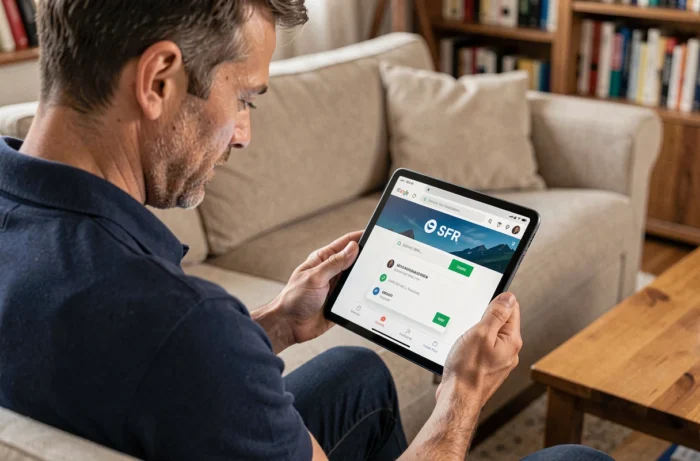
When launching the web browser from the SFR decoder (Home button, then dedicated section), the default homepage points to the SFR portal. This portal offers an internal search engine that aggregates web results, as well as SFR content (news, promotions, services). The address bar at the top of the screen allows you to type a URL or a keyword.
A common trap: many users type their search in this bar without realizing it uses the SFR engine and not Google. The results differ, as does the relevance. To switch to Google, simply enter google.fr in the address bar, then initiate the search from that page.
You can also use the SFR search engine as a starting point, then navigate to your preferred engine by adding the address to favorites for future sessions.
Changing the Default Search Engine on an SFR Box
On a computer or smartphone connected to the SFR network, the search engine depends on the installed browser (Chrome, Firefox, Safari). The box does not enforce any engine on these devices. The issue arises only on the integrated browser of the TV decoder.
On the decoder, customization options are limited. There is no “default search engine” menu like in Chrome or Firefox. The practical method that works:
- Open the decoder’s browser with the remote, enter google.fr in the address bar, then add this page to favorites
- Each session, go through favorites to access Google directly (or Bing, DuckDuckGo, depending on preference)
- If the decoder offers a “homepage” shortcut, some models allow modification in the browser settings, but feedback on this varies by box generation
On a computer connected via Wi-Fi to the SFR box, the process is simpler. In Chrome, for example, you access the settings, section “Search Engine,” and select your preferred one. The SFR box does not change this setting.
Navigating with the SFR Remote: Shortcuts and Concrete Limitations
Browsing the web with a TV decoder remote remains a frustrating experience compared to a physical keyboard. Typing letter by letter on the virtual keyboard takes time, especially for long searches.
Useful Shortcuts on the SFR Decoder
The Home button returns to the decoder’s home screen. From there, you can access the browser, TV guide, and integrated search engine. On recent models, voice search via the remote allows you to dictate a keyword instead of typing it. You press the microphone button, say your request, and the decoder initiates the search.
This voice search function is mainly designed to find TV programs or replay content. For a standard web search, the result often redirects to the SFR portal. If you want to search on Google by voice, it’s better to use a smartphone or tablet connected to the same Wi-Fi network.
When to Prefer Another Device
For any regular web search, a computer or smartphone connected to the SFR box is more efficient than the decoder’s browser. The TV decoder excels at searching for programs, replay, and navigating SFR menus. Pure web browsing, with forms, multiple tabs, and complex pages, is not its strong suit.
SFR Wi-Fi and Browsing Comfort: What Changes with Box Generation
The quality of web browsing also depends on the network hardware. Recent SFR boxes come equipped with Wi-Fi technologies that significantly change the experience.
The SFR Box 8 includes Wi-Fi 6E, which improves stability and reduces latency when multiple devices connect simultaneously. Specifically, when you launch a Google search on your computer while another household member is streaming, the connection remains smooth.
Since September 2025, the SFR Box 10+ offers tri-band Wi-Fi 7. This standard manages simultaneous connections even better and provides higher speeds. For standard web browsing, the difference with Wi-Fi 6E is marginal, but it is noticeable on heavy pages (comparators, mapping, online services with a lot of media).
- Wi-Fi 5 (older boxes): sufficient for text searches, but possible slowdowns with multiple active devices
- Wi-Fi 6E (Box 8): smooth browsing even under load, good range in a standard apartment
- Wi-Fi 7 (Box 10+): maximum comfort, especially useful for households with many connected devices
If browsing seems slow despite a fiber subscription, the issue sometimes lies with the Wi-Fi and not the search engine. Bringing the device closer to the box or switching to a wired Ethernet connection often resolves the problem.

AI Overviews in Google Results: What Changes for SFR Subscribers
Since July 2026, Google has been rolling out AI Overviews and an AI mode in its search engine in France. When you type a question from a browser connected to an SFR box, Google may display an AI-generated summary directly at the top of the results.
This change alters the browsing experience: sometimes you get a complete answer without clicking on any links. For simple searches (definitions, technical step-by-steps, quick comparisons), the AI summary often suffices without needing to open multiple pages. For more detailed searches, traditional links remain displayed below.
This evolution affects all Google users in France, regardless of the internet service provider. But for SFR subscribers who still used the SFR portal’s search engine out of habit, it’s an additional reason to switch to Google: AI Overviews are not available on the SFR search engine.
The TV decoder’s browser displays these AI summaries in a less readable way than a computer screen, due to resolution and navigation with the remote. To fully enjoy them, a screen with a keyboard remains the best option.